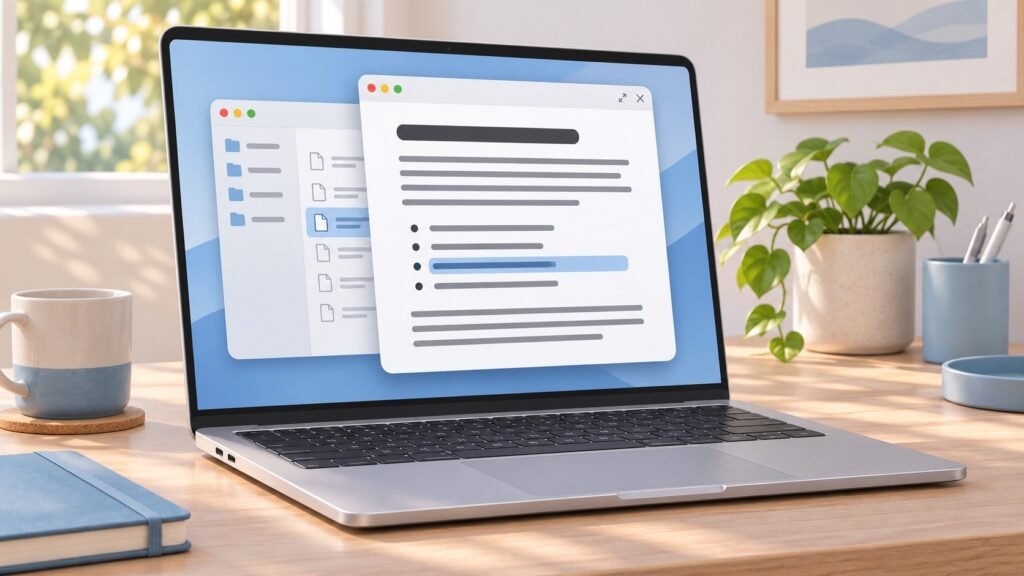
The macOS 27.3 Markdown preview is a small change with a practical payoff: readable documents without opening another app. According to MacRumors, the new beta lets Quick Look display formatted Markdown files directly from Finder, including headings, bold text, lists and links.
That is useful if your Downloads folder contains project instructions, meeting notes or README files ending in .md. However, this is a beta feature, not a reason to rush an experimental operating system onto your main Mac. Here is what has been reported, how the preview works and what everyday users should do.
What changes with the macOS 27.3 Markdown preview?
Apple announced the macOS 27.3 beta on 3 November 2026, alongside its other platform betas. In its 4 November report on Quick Look, MacRumors describes native rendering for Markdown documents in the first developer beta.
Instead of treating a Markdown document only as text with formatting symbols, Quick Look can present its structure in a more readable form. Headings look like headings, lists are easier to scan, and emphasis appears as formatting rather than just punctuation.
The distinction matters: Apple confirms the beta release, while the specific preview behaviour comes from the published beta report. Features and compatibility can change before the final release.
What is Markdown?
Markdown is a plain-text way to describe document formatting. A hash symbol can indicate a heading, while asterisks can mark emphasis. It is widely used for software documentation, but also works for study notes, writing drafts and team instructions.
You do not need to become a developer to benefit. If someone sends you a Markdown document, a formatted preview can make its contents easier to understand.
How to preview Markdown files on Mac
The workflow uses an existing Mac shortcut. Apple’s Quick Look guide explains that selecting an item and pressing the Space bar opens a preview without opening the file in its associated app.
- Find the document. Open Finder and locate a file ending in
.md. - Select it once. Do not double-click, which normally opens an app.
- Press the Space bar. On a beta with the reported capability, Quick Look should display the formatted Markdown preview.
- Resize the preview if needed. Apple documents dragging the window corners to adjust its size.
- Press Space again to close. Open your preferred editor separately if you need to change the document.
Already running a stable version of macOS? The Space bar shortcut still works for supported file types, but do not assume the new native Markdown rendering is available there. Earlier behaviour can also depend on installed preview extensions.
Why this matters for everyday Mac users
The improvement removes friction from a common task: checking what a document says before deciding whether to open it. A student can inspect study notes, a small-business owner can read a project handover, and a developer can check a README without launching an editor.
For people working with many small documents, the benefit is less interruption. You stay in Finder rather than moving between windows simply to identify the right file.
MacRumors reports that the native preview does not require a separate editor or Quick Look extension. That could simplify a basic reading workflow, although it does not make specialist writing tools unnecessary.
What Quick Look does not replace
A formatted preview is not the same as a complete Markdown workspace. Keep using an editor when you need to write, revise or manage documents.
- Editing: Do not assume the new Markdown view adds a full editor.
- Advanced formatting: The report does not establish support for every Markdown dialect, diagram extension or specialised publishing format.
- Website checks: A Finder preview is not proof that a document will render identically on your blog or another platform.
- File safety: Readability does not establish that a file or the links inside it are trustworthy. Treat unfamiliar documents cautiously.
If a complex document looks incomplete, compare it in the application intended for that format before changing your workflow.
Which devices are affected, and should you update?
This story concerns Macs running the macOS Golden Gate 27.3 beta, not a new iPhone or iPad feature. Apple’s security releases page lists the macOS 27 generation for supported Apple silicon Macs and identifies macOS 27.2 as the latest released version at the time of checking on 8 November.
For most people, the recommendation is straightforward: wait for a stable release rather than installing a beta just for Markdown previews. This convenience feature is not presented here as an urgent security fix, and this guide does not claim a complete security-fix list for the unfinished update.
Apple’s Beta Software Program FAQ warns that prerelease software can contain errors and recommends non-production devices. If you choose to test, make a Time Machine backup first and avoid a Mac that is essential for work or study.
Australian readers can apply the same advice without making a hardware purchase. For broader context, see our macOS Golden Gate update guide. If you are separately considering a new laptop, our Australian MacBook Pro buying guide covers that different decision.
Final thoughts
The macOS 27.3 Markdown preview is a useful productivity improvement because it makes an existing shortcut more capable. Learn the Finder Space bar workflow now, keep a proper editor for writing, and let stability—not a single convenience feature—determine when you update.
FAQs
Is the macOS 27.3 Markdown preview available to everyone?
Not as a generally released feature at the time of checking. The capability is reported in the macOS 27.3 beta, and beta behaviour may change.
Do I need another app to see formatted Markdown?
MacRumors reports native rendering in the new Quick Look beta implementation, without a separate editor or extension. Other macOS versions may behave differently.
Can I write Markdown documents in Quick Look?
Do not treat this feature as a Markdown editor. Use a suitable writing or code-editing app to create and revise your documents.
Should I install the beta on my work Mac?
Not just for this feature. Apple recommends testing on non-production systems and backing up first; most everyday users are better served by waiting for a stable release.